Ubuntu Blog for All!

Linux is for all :-)

Ubuntu Linux World

Ubuntu Tips | Tricks | 3D Desktop

HOW TO - GOOGLE TALK IN GAIM

Posted on 5:18 PM by syah nooraiman

Let me show you how to enable gtalk in Gaim. Yes we can do it and its easy. Easy simple steps :
  1. 'Add' account in Gaim.
  2. Select Jabber for protocol.
  3. Screen name = your gmail account name (name before @ sign).
  4. Server = gmail.com
  5. Resource = use default (don't type this,just leave it).
  6. Password = your gmail password.
  7. Alias = what do you want to be known as.
  8. More option / advance.
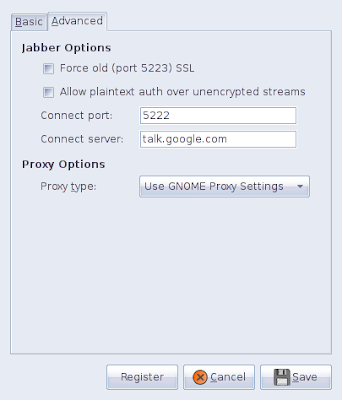
  9. Connect server = talk.google.com
  10. Register and connect.
That's all. Have fun..:)

Your configuration should be like this.

Your advance configuration should look like this.

Labels: , , ,

Google Sky is on Ubuntu!!

Posted on 12:54 AM by syah nooraiman

Let the sky is your limit...:) With Google Sky, you can explore hundred millions stars and galaxies within your computer!!
The proper way to install Google Sky is by using .deb package. But, since Google doesn't provide any .deb package for Google Sky, why don't we make one..:) its simple..:)

1. First step, download and install latest version of Google Earth

wget http://ftp.debian.org/debian/pool/contrib/g/googleearth-package/googleearth-package_0.3.2_all.deb
sudo dpkg -i googleearth-package_0.3.2_all.deb
sudo apt-get install -f

2. Now, we create new package,

make-googleearth-package

3. Install the package

sudo dpkg -i googleearth_4.2.180.1134+0.3.2-1_i386.deb
sudo apt-get install -f

Very simple isn't it? Go to Application>Internet>Google Earth. Press the Sky button and discover your stars..:)

Labels: , ,

Top Ubuntu Application , Category #3 - WEB BROWSERS

Posted on 7:47 PM by syah nooraiman

This should be easy for you. By default, Mozilla Firefox is installed after fresh installation of Ubuntu Feisty. And the fact is, Firefox is more secure and faster web browser you can get to date.

1. Mozilla Firefox (installed by default)
2. Opera - Fast and safe Web browser (but a bit difficult to customize and set up)
To install :
  • Go to the main Opera download page HERE.
  • Choose Feisty Fawn
  • Click Download Opera. Download will start automatically. Save the file and run it after download is completed.
3. Epiphany - The web browser for GNOME. You can read about it HERE.
To install :
  • Open Terminal. Type
sudo apt-get install epiphany-browser
  • Epiphany will start downloading and should be on your menu (Application>Internet>Epiphany) shortly.

Labels: , , , , , ,

Top Ubuntu Application , Category #2 - BITTORENT CLIENTS

Posted on 9:24 PM by syah nooraiman

By default, Bittorent is default bittorent client for Ubuntu Feisty Fawn. But, you are free to choose any bittorent client to install.

1. Azureus - Azureus is a java-based bittorent client. Rich of feature for both beginner or advance user.
To install :
  • Open Synaptic package manager, search for 'azureus'. Left click and choose 'mark for installation'. Synaptic will do the rest.
2. Deluge - Very simple yet power. Rapidly developed over the time.
To install :
  • Open Synaptic package manager, search for 'deluge'. Left click and choose 'mark for installation'. Synaptic will do the rest.

Labels: , , , ,

Top Ubuntu Application , Category #1 - EYECANDY

Posted on 8:17 PM by syah nooraiman

1.Compiz-Fusion
(for installation, read it at my previous post here)

2.Avant Window Navigator
(for installation, read it at my previous post here)

3.Emerald - a window decorator for compositors (compiz fusion, beryl).
To install :
  • Open Synaptic Package Manager (System>Administration>Synaptic Package Manager) and search for 'emerald'. Then, mark the program named 'emerald' and choose 'mark for installation'. You can mark emerald-themes too, it packs some emerald themes.
Synaptic Package Manager.

4. Screenlets - a small application, like clocks, wheater, rss reader, that can be place on your desktop ( like Vista ). You MUST HAVE compositors to install this.
To install :
  • Download the latest screenlets source here. Extract the file and rename it as screenlets. Put in your desktop.
  • Open Terminal and enter :
cd Desktop/screenlets
  • Then enter :
sudo make install
  • To make screenlets appear in menu, open Terminal and enter
sudo make menu
  • Restart Ubuntu. Log in and screenlet will appear on menu. Have Fun!
  • If you want additional screenlets, you can download at www.gnome-look.org, there's plenty of it.. :)

Labels: , , , ,

Top Open Source Application for Ubuntu

Posted on 7:57 PM by syah nooraiman

It is hard especially for beginners, to know which application is the best. Get to know from forum, google it or knowing from friends can be a hard time for newbies. This tutorial will show you what application is the best and how to install it. You dont need to search for other resource.. :) I'll split these tutorial into several post. Have a good day!.. :)

Labels: ,

Make installations as easy as 1-2-3..:)

Posted on 3:39 AM by syah nooraiman

Yes, it is true that Ubuntu can't play most video or audio files out of the box. But, it is same for Windows. Ever tried playing h264/MOV/aac content in windows?You end up installing some application too. The most easy way to setup these things is using software called Automatix. Automatix is a software which have plenty of softwares in it, making installation is really simple ( just little clicks ). Click link below to download .deb package for installation.

Automatix ( Ubuntu Feisty )

Automatix 64 ( Ubuntu Feisty 64 bit )

Save the package and run it, simple as that. It should be downloading something during the download session.

Click Install Package ( mine is Reinstall because i've installed one )

Automatix screenshot.

Pick any software you want ( tick it ) and hit Start..:) and Automatix will do the rest..enjoy..:)

Labels: , , ,

Really annoying first impression on Vista

Posted on 6:47 AM by syah nooraiman

Actually, i dont spent many times to explore Vista until recently my father bought an acer laptop, which comes preinstalled with Vista..and i had the chance to play with vista before i come back to my home. The fisrt impression was, extremely SLUGGISH, and still unstable. Vista should not behave like this, where my father's laptop actually fill the minimum requirement ( 1 GB RAM, 128 MB Nvidia Geforce Go 7300, C2D 1.66 Ghz ) but somehow problems still appears. Take a look..:)

OMG!! NVIDIA is stop responding...

Haha!! Display problem???..:D

Personally, my Ubuntu Feisty with Compiz-Fusion where the desktop is much much much much more electrifying than Vista and could run on much more MINIMAL requirement ( 512 MB RAM, ATI Radeon x700 128 Mb, Pentium M 2.0 ) and NEVER counter any display driver problem..:) BTW, Compiz-Fusion renders so quickly, i think 10x more than Vista..:) So, why still use Vista?..:) They eat freakin' amount of laptop's power n yet so sluggish..:D

BTW, i still find setting how to output video to tv..;( Still don't get it and don't know where..:( and yet, so many same problem..:( I think to switch back to XP is the best solution ( since my father will use it )...:P


Labels: , ,

Things i LOVE and HATE about Ubuntu Linux

Posted on 4:10 AM by syah nooraiman

Well, not all people do like 100% of what enjoy to do it right? There must be certain small amount of dislike in what we doing (even we enjoy it..:) Some goes with linux, over the past 6 months i've use ubuntu linux, i've some things i enjoy the most and hate the most..:D

Things i LOVE about Ubuntu Linux.
  1. Absolutely FREE!!
  2. Lots of FREE applications tooo ( and i meant almost all application!).
  3. Easy application installations. ( Very easy actually ).
  4. Very easy updates and no 'you are using illegal copies' warning or what so ever.
  5. Most applications suits my daily needs.
  6. The MOST BEAUTIFUL OS EVER! In days coming, i'll show you a video about my Compiz-Fusion..:) Absolutely more beautiful compare to Windows or even Macs.
  7. Few security threats. No viruses, no anti virus warnings.
  8. The desktop is highly customizable.
  9. Fast, even on minumum requirement.
  10. Very stable.
Things i HATE about Ubuntu Linux.
  1. Need to know certain level of computing to install some application.
  2. I've been searching for application that i need the most, but absent in Linux - A VERY GOOD AUDIO/VIDEO CONVERTER. I've been using SUPER for a long time and i miss super so much.......
  3. If you do so much hard shutdown/restart, you'll end up screw your linux.
  4. There is room for OpenOffice.org to improve.
  5. Not that easy to configure some setting ( that's why i wrote this blog...:).
Well, that's it for me..:)

Add to Technorati Favorites
Blog Flux Directory

Labels:

Running Windows application on Linux

Posted on 3:45 AM by syah nooraiman

Are windows application can run on Linux?? Yes and no. Yes, application actuall CAN run on Linux, but NO if the smoothness stability is the issue. I had run some of the application ( most of them are games ), they run pretty smooth but somehow, i get stuck many times. The application is not as smooth as in windows but the developers out there really make something to ensure windows application can run smoothly on Linux. Top Linux application for running Windows application right now are WINE and CEDEGA

WINE ( Wine Is Not Emulator ) are an open source project which can be download for free. Wine is still in development but you can try it if you want and its pretty stable too.More information can be read here. TRANSGAMING CEDEGA in the other hand, is commercial software which you have to subscribe to use it. TRANSGAMING claims that CEDEGA offers same or in some situation surpass the performance in the original windows. More information can be read here. In my future post, i will show you how to install WINE. Have a good day..:)

Add to Technorati Favorites
Blog Flux Directory

Labels: , , ,

Latest news from Ubuntu..:)

Posted on 4:02 PM by syah nooraiman

9 August 2008; Martin Pitt has announced the forth release (or "Tribe CD") of Ubuntu 7.10 Gutsy Gibbon. This release brings new features such as GNOME 2.19.6, Desktop Search with Tracker, fast user switching, deskbar applet, OpenOffice.org 2.3, AppArmor by default, smooth shutdown splash..:) Read the release announcement here, and release notes for further details and screenshot. If you want a test, Download (MD5): gutsy-desktop-i386.iso (696MB), gutsy-desktop-AMD64.iso.

Add to Technorati Favorites
Blog Flux Directory

Labels: ,

Things you should be aware about Ubuntu..

Posted on 7:08 AM by syah nooraiman

Well, i've been using Ubuntu Linux Feisty Fawn for 5 months now. And along that time, i've screw up 4 times, by doing something that is not suppose to do (well, how do i know, i'm just a newbie back there)..:p After all, i've come to list things you should NOT DO with your linux...:)

  1. Don't ever broke the dependencies. Whenever you installing, updating or removing programs, let the whole process completed. NEVER interrupt the process.
  2. If you can, avoid hard restart or shutdown at any cost.
  3. If given step-bt-step installation guide, FOLLOW EVERY SINGLE STEP! Dont even skip one. I've got bad experience about this.
  4. Before following step-by-step installation, do some research either that instruction is working or not and for what version.
  5. Don't ignore advice from other linux user especially experts on forums. They know what they talking about.
By doing things properly, right after i applied all above rules, i never counter crashes anymore, and all things work like charm..:)

Add to Technorati Favorites
Blog Flux Directory

Labels: , ,

Installing Avant Window Navigator on Ubuntu Feisty

Posted on 5:22 PM by syah nooraiman

Do you want something like this? I'm sure you want! It's cool to have something like macs..:) Its called Avant Window Navigator. I'll show you how to install one..

My dock..:)

This is available only for 32-bit Ubuntu Feisty ONLY. Type in Terminal

wget http://download.tuxfamily.org/syzygy42/8434D43A.gpg
sudo apt-key add 8434D43A.gpg
rm 8434D43A.gpg
sudo apt-get update

Then in System>Administration>Software Sources, add this line

deb http://download.tuxfamily.org/syzygy42 feisty avant-window-navigator

deb-src http://download.tuxfamily.org/syzygy42 feisty avant-window-navigator

Then Update your system

sudo apt-get update

Then, install avant window navigator

sudo apt-get install avant-window-navigator

Then Avant window navigator will appear in Application>Accessory

Avant window navigator ONLY WORKS IN COMPOSITORS ( eg Beryl, Compiz, Compiz-Fusion) and if you dont have compositor, DONT EVEN TRY TO INSTALL, it will just cause problems..


Add to Technorati Favorites
Blog Flux Directory

Labels: , ,

Installing ATI+XGL on Ubuntu Feisty

Posted on 11:04 AM by syah nooraiman

This is a tutorial for ATI users that want to install Compiz Fusion. In my previous post, it is possible for you to install Compiz Fusion without XGL ( it is my experiment and it went OK ). But, after installing XGL, i experienced significant improvement for both graphics and processor load time. The graphics went very smooth, load much more faster and it is more fun to playing around..:) I REALLY RECOMMEND you to install it (it is a must actually but i wont force you )..my Frame Per Second went up to 370 fps..:) nice...:) Ok, let's start..

My benchmark showing over 370 scores!

Open Terminal and type :

sudo apt-get install xserver-xgl

xgl cannot load by itself, so we do an auto load like this

sudo gedit /usr/local/bin/startxgl.sh

copy and paste this code into that window that comes up

#!/bin/sh
Xgl :1 -fullscreen -ac -br -accel xv:pbuffer -accel glx:pbuffer &
DISPLAY=:1
cookie="$(xauth -i nextract - :0 | cut -d ' ' -f 9)"
xauth -i add :1 . "$cookie"
exec dbus-launch --exit-with-session gnome-session

Remember to SAVE THIS FILE and after that, type in Terminal

sudo chmod a+x /usr/local/bin/startxgl.sh

that will compile the program above. After that, to choose XGL from login menu, type in Terminal :

sudo gedit /usr/share/xsessions/xgl.desktop

And paste this code into the window that popup

[Desktop Entry]
Encoding=UTF-8
Name=GNOME with XGL
Comment=
Exec=/usr/local/bin/startxgl.sh
Icon=
Type=Application

to make the program executable, type in Terminal

sudo chmod a+x /usr/share/xsessions/xgl.desktop

Now try to logout. Before you login, click sessions and choose GNOME with XGL. That's all...:) To install Compiz Fusion, please go to my previous post..:)


Add to Technorati Favorites
Blog Flux Directory

Labels: , , , , , ,

Enabling Blueetooth Support for Ubuntu Feisty

Posted on 8:46 AM by syah nooraiman

Obviously, to enabling bluetooth support for my laptop (Acer Aspire 1694) is easy. Personally, this is the most easiest way to enabling bluetooth for me, because i've read so many howto's and it confusing me a lot. But i'll show you how it's done. I'm using build-in bluetooth adapter ( from Widcomm ).

Open Terminal and type :

sudo apt-get install bluetooth gnome-bluetooth  

sudo apt-get install bluez-gnome bluez-utils

try to restart ...

and thats all!..easy isn't it? This is the screenshot when i switch on my bluetooth...:)

I turn on the bluetooth switch..:)

If you want some other bluetooth application, just go to Application>Add/Remove Program and search 'Bluetooth'..There's plenty of it..:)


Add to Technorati Favorites
Blog Flux Directory

Labels: , , ,

Enable Memory Card support for Ubuntu Feisty

Posted on 4:08 PM by syah nooraiman

For those who has Texas Instrument SD card reader on your laptop, this tutorial will guide you to get it working. By default, card reader might not working after fresh install of Ubuntu Feisty

Open Terminal or Application>Accessories>Terminal

gksudo gedit /etc/modules

Add to that file:

tifm_sd
tifm_7xx1
tifm_core

Save it, and on next reboot it will work fine. To get it working right now:

Open Terminal or Application>Accessories>Terminal

sudo modprobe tifm_7xx1
sudo modprobe tifm_core
sudo modprobe tifm_sd

If you have an XD, MS or SM card,it won't work because those drivers have yet to be written. Sorry.

Add to Technorati Favorites
Blog Flux Directory

Labels: , , ,

Installing Compiz Fusion and other eye candy

Posted on 3:34 AM by syah nooraiman


Why i wrote this article?------------------------------------------------------------------------------------------

Ok, there's always misunderstanding for people actually blame linux because its Operating System is not pretty as windows or macs. I often read and heard that linux is considered very plain and old school and not very configurable. I totally disagree with that. If you take a look at pictures at my previous post, it hardly can imagine that windows can imitate that in a short time (but macs can for sure,but it cost you a mac machine). GNOME is simple and FREE but yet very powerful and it is possible to modify GNOME into whatever you want it to be. The path is clear, and let's begin....:)

Change the Wallpaper----------------------------------------------------------------------------------------------

Wallpaper is a simple step to turn a dull, plain wallpaper into some eye-catchy one. Depends on what resolution you use, wallpaper can change the illusion when you stare at them. For a nice wallpaper, i recommend you to go to www.wallpaperstock.net and choose what background that suit you and your desktop the best.

Change the icon---------------------------------------------------------------------------------------------------------

Surely if u can rename the most eye-catching iconset u've ever seen, it maybe from macosx. Its true and for you to use it, it never been easier. At www.gnome-look.org, you head to iconthemes and there's hundreds of icons that you can use for your desktop. And if you have difficulties in searching which best to your desktop, personally, i recommend you to have these iconsets. For me, it is the best iconsets to date..:)

Aero

blendedcrystal
nouveXT2.2
OSX3.3
Snowish-1.0_PNG

After you download it (as .tar.gz file ), go to System>Preferences>Theme. Click Customize, go to Icon tab, and click install. Double click to files that you want to install and it will install it for you. If successfully installed, it will be in the list. To change the icon, just choose your desired icon from the list..:)

Change the Themes--------------------------------------------------------------------------------------------------

Themes can change your whole desktop! The trick is to find the right one to suit you best. There's no more place you can download themes as much as www.gnome-look.org. There's hundreds or thousands of themes you can choose from. Go to gtk2.x themes and choose it according to your needs, and for sure you will be spending a lot of time here..:) For a quick guide, i personally recommend you to use this themes..:)

T-ish-Pack

Elegance
Magnifico
candido
Alphacube GTK Theme

And, to install themes, it is the same as installing iconset. Instead you click customize, you just click install theme, its easier. And some iconset that is namely 'unpackme' in their filename, ypu have to unzip it first..:)

Installing Compiz-Fusion-----------------------------------------------------------------------------------------

This is the most complex step here. And i don't think you want to install thing you don't know what it is right? Ok, simple introduction from me. For linux, there have been many 3d Desktop project been developed in several years such as Compiz, Beryl, Xgl and many more. Beryl is the project that is, for me, is the most successful one, with so many cool features and ability. But, project beryl is discontinued, but it don't just die like that. The new 3d Desktop project is called Compiz Fusion, is an emerge of Beryl and Compiz, resulting in totally awesome, jaw-dropping cool features that can turn your machine way more COOLER than window or even macs. The screenshot in my previous post proof it..:).But, 3D desktop is very dependant of what types of video card you use, either NVIDIA,ATI or Intel VGA. For totally unleash the capability of compiz fusion, it is very recommended using the recent graphics card. Personally, i'm using ATI MOBILITY RADEON X700 128 MB (since it glued to my laptop of course), and installing it is considered easy, as long as you follow EVERY step of instructions that i give...and since it is the bleeding-egde of technology and still in development, use it at your own risk!(but believe me, its very very impressing).

First of all, update your system. Open Terminal and type :

sudo apt-get update

If you own an NVIDIA graphic card, install the linux driver and go on with tutorial below.

If you own an ATI graphic card, read my post about installing ATI+XGL+Compiz Fusion.( Its not that hard actually ) before you go on with tutorial below.

Open Terminal ( Application>Accessosories>Terminal) and key in this line :

KEY=DD800CD9; gpg --keyserver subkeys.pgp.net --recv $KEY && gpg --export --armor $KEY | sudo apt-key add -

To add the repository edit your sources.list using

sudo gedit /etc/apt/sources.list

or

System>Administration>Software Sources

Add these lines:

(for ubuntu 32bit)
deb http://download.tuxfamily.org/3v1deb feisty eyecandy
deb-src http://download.tuxfamily.org/3v1deb feisty eyecandy

(if you using ubuntu64 bit)
deb http://download.tuxfamily.org/3v1deb feisty eyecandy-amd64
deb-src http://download.tuxfamily.org/3v1deb feisty eyecandy-amd64

Then a window will popup showing that you need to reload the sources list. Just reload it, it will take a short time..:)

Remove the previous Compiz installed ( just enter 'y' if asked )

sudo apt-get remove compiz-core

Install all the needed compiz packages, do

sudo apt-get install compiz  # compiz-gnome AND/OR compiz-kde

Install CompizConfig configurator

sudo apt-get install compizconfig-settings-manager # compizconfig-backends-* ?!

Install Compiz Fusion Plugins:

sudo apt-get install compiz-fusion-*

After finish installing compiz, restart your computer and after that, open Terminal and type

compiz --replace

Compiz should be working for you now. Opening CompizConfigSettingsManager in System>Preferences>CompizConfigSettingsManager may let you customize compiz to whatever you likes.

Add to Technorati Favorites
Blog Flux Directory

Labels: , , , ,

The linux story began...

Posted on 5:55 PM by syah nooraiman

Transition from Windows to Linux never been this easy. In 3 month, i've give up using windows in my daily work for the reason that everyone know about Windows (stablility issue, viruses, and the rest). Recent transition to Ubuntu Feisty Fawn (which is the most popular and easy to use linux distribution to date) proof that using linux in daily life is ROCCKKKSSS!!! Excellent user interface (the most beautiful i've ever seen), much much much more stable than windows and no security threat anymore (i now really enjoy to WATCH viruses in my friend's thumbdrive and count how many of them, before they crush my friend's windows...:) And now, there's no way i go back to windows anymore,..:) Installation is fast, clean and the requirement is low ( i installed in in my laptop which only use 512 mb ram and pentium mobile 2.0 ghz). And with these requirement, it work like charm..these are the screenshot of my desktop to show how beauty it is ...:) enjoy..:)

My workspaces on 3D cubes...:)

How cool is that?

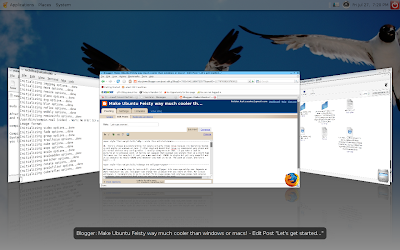
Displayed all window that i've opened..

All workspaces in one row!!Nice dude..:)


Add to Technorati Favorites
Blog Flux Directory

Labels: